
Google Places Autocomplete is a common requirement for address forms. While Google provides a ready-made widget, it’s difficult to style and doesn’t play well with Angular’s reactive forms. In this guide, we’ll build a custom autocomplete directive from scratch using Google’s newer AutocompleteSuggestion API — giving us full control over the UI while leveraging Google’s powerful address matching.
What We’re Building
- A reusable Angular directive that attaches to any
<input>element - A fully custom dropdown (no Google widget — we own the HTML and CSS)
- Keyboard navigation (arrow keys, Enter, Escape)
- Debounced input to minimize API calls
- Parsed, typed address output via an Angular
output()signal - Lazy-loaded Google Maps SDK (only loads when the directive is used)
Here’s what it looks like in action:
<input
  type="text"
  libGooglePlaces
  (placeChanged)="onAddressSelected($event)"
  placeholder="Start typing an address..."
/>
Prerequisites
- Angular 21 (standalone components)
- A Google Cloud project with the Places API (New) enabled
- A Google API key with Places API access
Step 1: Install Google Maps Types
First, install the TypeScript type definitions for the Google Maps API:
npm install --save-dev @types/google.maps
Then add the types to your tsconfig.json (or tsconfig.app.json):
{
  "compilerOptions": {
    "types": ["google.maps"]
  }
}
This gives us full type safety when working with google.maps.places.* classes.
Step 2: Create the Address Model
Define a typed interface for the parsed address data. This is what our directive will emit when a user selects a suggestion.
models/google-place-address.ts
export interface GooglePlaceAddress {
  streetNumber: string;
  route: string;
  streetAddress: string;
  city: string;
  stateCode: string;
  stateName: string;
  postalCode: string;
  formattedAddress: string;
}
The key fields:
streetAddress— combined street number + route (e.g., “123 Main St”)stateCode— short form like “FL”stateName— long form like “Florida”formattedAddress— the full address string from Google
Step 3: Create an Injection Token for the API Key
We don’t want to hardcode the API key in our directive. Instead, we’ll use Angular’s dependency injection with an InjectionToken.
services/google-places.token.ts
import { InjectionToken } from '@angular/core';

export const GOOGLE_PLACES_API_KEY = new InjectionToken<string>(
  'GOOGLE_PLACES_API_KEY'
);
Register it in your app config:
// app.config.ts
import { ApplicationConfig, provideBrowserGlobalErrorListeners } from '@angular/core';
import { GOOGLE_PLACES_API_KEY } from './services/google-places.token';
import { environment } from '../environments/environment';

export const appConfig: ApplicationConfig = {
  providers: [
    provideBrowserGlobalErrorListeners(),
    {
      provide: GOOGLE_PLACES_API_KEY,
      useValue: environment.google.placesApiKey,
    },
  ],
};
And set the key in your environment file:
// environments/environment.ts
export const environment = {
  google: {
    placesApiKey: 'YOUR_GOOGLE_API_KEY',
  },
};
Step 4: Create the Google Places Loader Service
This service lazily loads the Google Maps JavaScript SDK. It ensures the script is only loaded once, even if multiple directives exist on the page.
services/google-places-loader.service.ts
/// <reference types="google.maps" />
import { inject, Injectable } from '@angular/core';
import { GOOGLE_PLACES_API_KEY } from './google-places.token';

@Injectable({ providedIn: 'root' })
export class GooglePlacesLoaderService {
  private apiKey = inject(GOOGLE_PLACES_API_KEY, { optional: true });
  private loadPromise: Promise<void> | null = null;

  load(): Promise<void> {
    // If no API key is configured, fail gracefully
    if (!this.apiKey) {
      return Promise.reject('Google Places API key is not configured');
    }

    // Return existing promise if already loading/loaded
    if (this.loadPromise) {
      return this.loadPromise;
    }

    // Check if Google Maps is already available (e.g., loaded by another script)
    if (
      typeof google !== 'undefined' &&
      google.maps &&
      google.maps.places
    ) {
      this.loadPromise = Promise.resolve();
      return this.loadPromise;
    }

    // Dynamically create and append the script tag
    this.loadPromise = new Promise<void>((resolve, reject) => {
      const script = document.createElement('script');
      script.src = `https://maps.googleapis.com/maps/api/js?key=${this.apiKey}&libraries=places&v=weekly&loading=async`;
      script.async = true;
      script.defer = true;

      script.onload = () => resolve();
      script.onerror = () => {
        this.loadPromise = null; // Allow retry on failure
        reject('Failed to load Google Maps script');
      };

      document.head.appendChild(script);
    });

    return this.loadPromise;
  }
}
Key design decisions:
optional: trueon the inject — if no API key is provided, the service fails gracefully- Single load — the promise is cached so the script is only appended once
- Error recovery — on failure,
loadPromiseresets tonullso a retry is possible loading=async— uses Google’s recommended async loading
Step 5: Build the Directive
This is the core of the implementation. Rather than using Google’s Autocomplete widget (which renders its own dropdown and is hard to style), we use the AutocompleteSuggestion.fetchAutocompleteSuggestions() API and render our own dropdown.
directives/google-places.directive.ts
/// <reference types="google.maps" />
import {
  Directive,
  ElementRef,
  inject,
  OnDestroy,
  OnInit,
  output,
} from '@angular/core';
import { GooglePlaceAddress } from '../models/google-place-address';
import { GooglePlacesLoaderService } from '../services/google-places-loader.service';

@Directive({
  selector: '[libGooglePlaces]',
  standalone: true,
  host: {
    '(input)': 'onInput($event)',
    '(keydown)': 'onKeydown($event)',
    '(focus)': 'onFocus()',
    '[attr.autocomplete]': '"off"',
  },
})
export class GooglePlacesDirective implements OnInit, OnDestroy {
  placeChanged = output<GooglePlaceAddress>();

  private el = inject(ElementRef<HTMLInputElement>);
  private loader = inject(GooglePlacesLoaderService);

  private isLoaded = false;
  private debounceTimer: ReturnType<typeof setTimeout> | null = null;
  private suggestions: google.maps.places.AutocompleteSuggestion[] = [];
  private selectedIndex = -1;
  private dropdownEl: HTMLDivElement | null = null;
  private outsideClickHandler: ((e: MouseEvent) => void) | null = null;

  ngOnInit(): void {
    this.el.nativeElement.setAttribute('autocomplete', 'off');
    this.loader.load().then(() => (this.isLoaded = true));
  }

  ngOnDestroy(): void {
    this.removeDropdown();
    if (this.debounceTimer) clearTimeout(this.debounceTimer);
  }

  onInput(event: Event): void {
    const value = (event.target as HTMLInputElement).value;
    if (this.debounceTimer) clearTimeout(this.debounceTimer);

    if (!this.isLoaded || value.length < 3) {
      this.removeDropdown();
      return;
    }

    this.debounceTimer = setTimeout(() => this.fetchSuggestions(value), 300);
  }

  onFocus(): void {
    if (this.suggestions.length > 0) {
      this.showDropdown();
    }
  }

  onKeydown(event: KeyboardEvent): void {
    if (!this.dropdownEl || this.suggestions.length === 0) return;

    switch (event.key) {
      case 'ArrowDown':
        event.preventDefault();
        this.selectedIndex = Math.min(
          this.selectedIndex + 1,
          this.suggestions.length - 1
        );
        this.updateSelection();
        break;
      case 'ArrowUp':
        event.preventDefault();
        this.selectedIndex = Math.max(this.selectedIndex - 1, 0);
        this.updateSelection();
        break;
      case 'Enter':
        event.preventDefault();
        if (this.selectedIndex >= 0) {
          this.selectSuggestion(this.suggestions[this.selectedIndex]);
        }
        break;
      case 'Escape':
        this.removeDropdown();
        break;
    }
  }

  private async fetchSuggestions(input: string): Promise<void> {
    try {
      const { suggestions } =
        await google.maps.places.AutocompleteSuggestion.fetchAutocompleteSuggestions(
          {
            input,
            includedPrimaryTypes: [
              'street_address',
              'premise',
              'subpremise',
              'route',
            ],
            includedRegionCodes: ['us'],
            language: 'en',
          }
        );

      this.suggestions = suggestions;
      this.selectedIndex = -1;

      if (suggestions.length > 0) {
        this.showDropdown();
      } else {
        this.removeDropdown();
      }
    } catch {
      this.removeDropdown();
    }
  }

  private async selectSuggestion(
    prediction: google.maps.places.AutocompleteSuggestion
  ): Promise<void> {
    try {
      const place = prediction.placePrediction!.toPlace();
      await place.fetchFields({
        fields: ['addressComponents', 'formattedAddress'],
      });

      const address = this.parsePlace(place);
      this.el.nativeElement.value = address.streetAddress;

      this.placeChanged.emit(address);
      this.removeDropdown();
    } catch (error) {
      console.error('Error fetching place details:', error);
    }
  }

  private parsePlace(place: google.maps.places.Place): GooglePlaceAddress {
    const components = place.addressComponents || [];
    const get = (type: string, nameType: 'long' | 'short' = 'long') => {
      const component = components.find((c) => c.types.includes(type));
      return nameType === 'short'
        ? component?.shortText || ''
        : component?.longText || '';
    };

    const streetNumber = get('street_number');
    const route = get('route');

    return {
      streetNumber,
      route,
      streetAddress: [streetNumber, route].filter(Boolean).join(' '),
      city:
        get('locality') ||
        get('sublocality_level_1') ||
        get('administrative_area_level_2'),
      stateCode: get('administrative_area_level_1', 'short'),
      stateName: get('administrative_area_level_1'),
      postalCode: get('postal_code'),
      formattedAddress: place.formattedAddress || '',
    };
  }

  // --- Dropdown DOM management ---

  private showDropdown(): void {
    if (!this.dropdownEl) {
      this.createDropdown();
    }
    this.renderSuggestions();
    this.positionDropdown();
  }

  private createDropdown(): void {
    this.dropdownEl = document.createElement('div');
    this.dropdownEl.className = 'google-places-dropdown';
    document.body.appendChild(this.dropdownEl);

    // Close dropdown when clicking outside
    this.outsideClickHandler = (e: MouseEvent) => {
      if (
        !this.dropdownEl?.contains(e.target as Node) &&
        e.target !== this.el.nativeElement
      ) {
        this.removeDropdown();
      }
    };
    document.addEventListener('mousedown', this.outsideClickHandler);
  }

  private renderSuggestions(): void {
    if (!this.dropdownEl) return;

    this.dropdownEl.innerHTML = this.suggestions
      .map((s, i) => {
        const prediction = s.placePrediction!;
        return `
          <div class="google-places-item${i === this.selectedIndex ? ' selected' : ''}"
               data-index="${i}">
            <span class="google-places-main">${prediction.mainText}</span>
            <span class="google-places-secondary"> ${prediction.secondaryText}</span>
          </div>`;
      })
      .join('');

    // Bind click and hover events to each item
    this.dropdownEl.querySelectorAll('.google-places-item').forEach((item) => {
      item.addEventListener('mousedown', (e) => {
        e.preventDefault(); // Prevent input blur
        const index = parseInt(
          (e.currentTarget as HTMLElement).dataset['index']!
        );
        this.selectSuggestion(this.suggestions[index]);
      });

      item.addEventListener('mouseenter', (e) => {
        this.selectedIndex = parseInt(
          (e.currentTarget as HTMLElement).dataset['index']!
        );
        this.updateSelection();
      });
    });
  }

  private positionDropdown(): void {
    if (!this.dropdownEl) return;
    const rect = this.el.nativeElement.getBoundingClientRect();
    Object.assign(this.dropdownEl.style, {
      position: 'fixed',
      top: `${rect.bottom + 2}px`,
      left: `${rect.left}px`,
      width: `${rect.width}px`,
      zIndex: '10100',
    });
  }

  private updateSelection(): void {
    if (!this.dropdownEl) return;
    this.dropdownEl.querySelectorAll('.google-places-item').forEach((item, i) => {
      item.classList.toggle('selected', i === this.selectedIndex);
    });
  }

  private removeDropdown(): void {
    if (this.dropdownEl) {
      this.dropdownEl.remove();
      this.dropdownEl = null;
    }
    if (this.outsideClickHandler) {
      document.removeEventListener('mousedown', this.outsideClickHandler);
      this.outsideClickHandler = null;
    }
    this.suggestions = [];
    this.selectedIndex = -1;
  }
}
Why Not Use google.maps.places.Autocomplete?
The legacy Autocomplete widget creates its own <div class="pac-container"> dropdown. Problems with this approach:
- Styling is painful — you’re fighting Google’s inline styles and shadow DOM
- z-index battles — the
.pac-containeroften renders behind modals or dialogs - No keyboard events — you can’t customize keyboard behavior
- Limited output — you get a place object but can’t control the dropdown UX
By using AutocompleteSuggestion.fetchAutocompleteSuggestions(), we get the raw suggestion data and build our own dropdown, giving us full control.
Step 6: Add Global Styles
Since the dropdown is appended to document.body (outside Angular’s component tree), we need global styles. Add these to your global stylesheet (styles.scss):
.google-places-dropdown {
  background-color: #fff;
  border: 1px solid #dee2e6;
  border-radius: 0.25rem;
  box-shadow: 0 4px 12px rgba(0, 0, 0, 0.15);
  max-height: 300px;
  overflow-y: auto;

  .google-places-item {
    padding: 8px 12px;
    cursor: pointer;
    border-top: 1px solid #dee2e6;
    font-size: 14px;
    line-height: 1.4;

    &:first-child {
      border-top: none;
    }

    &:hover,
    &.selected {
      background-color: #f5f5f5;
    }

    .google-places-main {
      font-weight: 500;
    }

    .google-places-secondary {
      color: #6c757d;
      font-size: 13px;
    }
  }
}
Step 7: Use It in a Component
Now the fun part — using the directive in a component with reactive forms.
import { Component } from '@angular/core';
import {
  FormBuilder,
  FormGroup,
  ReactiveFormsModule,
  Validators,
} from '@angular/forms';
import { GooglePlacesDirective } from './directives/google-places.directive';
import { GooglePlaceAddress } from './models/google-place-address';

@Component({
  selector: 'app-address-form',
  standalone: true,
  imports: [ReactiveFormsModule, GooglePlacesDirective],
  template: `
    <form [formGroup]="form">
      <div>
        <label for="street">Street Address</label>
        <input
          id="street"
          type="text"
          formControlName="streetAddress"
          libGooglePlaces
          (placeChanged)="onAddressSelected($event)"
          placeholder="Start typing an address..."
        />
      </div>
      <div>
        <label for="city">City</label>
        <input id="city" type="text" formControlName="city" />
      </div>
      <div>
        <label for="state">State</label>
        <input id="state" type="text" formControlName="state" />
      </div>
      <div>
        <label for="zip">Zip Code</label>
        <input id="zip" type="text" formControlName="zipCode" />
      </div>
    </form>
  `,
})
export class AddressFormComponent {
  form: FormGroup;

  constructor(private fb: FormBuilder) {
    this.form = this.fb.group({
      streetAddress: ['', Validators.required],
      city: ['', Validators.required],
      state: ['', Validators.required],
      zipCode: ['', Validators.required],
    });
  }

  onAddressSelected(address: GooglePlaceAddress): void {
    this.form.patchValue({
      streetAddress: address.streetAddress,
      city: address.city,
      state: address.stateCode,
      zipCode: address.postalCode,
    });

    // Mark fields as dirty so validation and change detection pick them up
    Object.keys(this.form.controls).forEach((key) => {
      this.form.get(key)?.markAsDirty();
    });
  }
}
That’s it. When a user types into the street address field, suggestions appear in our custom dropdown. When they select one, all four form fields are populated automatically.
Step 8: Restrict by Region (Optional)
The directive is configured for US addresses only via includedRegionCodes: ['us']. To support other countries, you could make this an input:
// In the directive
countries = input<string[]>(['us']);

// In fetchSuggestions
includedRegionCodes: this.countries(),
Then use it:
<input libGooglePlaces [countries]="['us', 'ca']" (placeChanged)="onAddressSelected($event)" />
How It Works Under the Hood
Here’s the flow when a user interacts with the autocomplete:
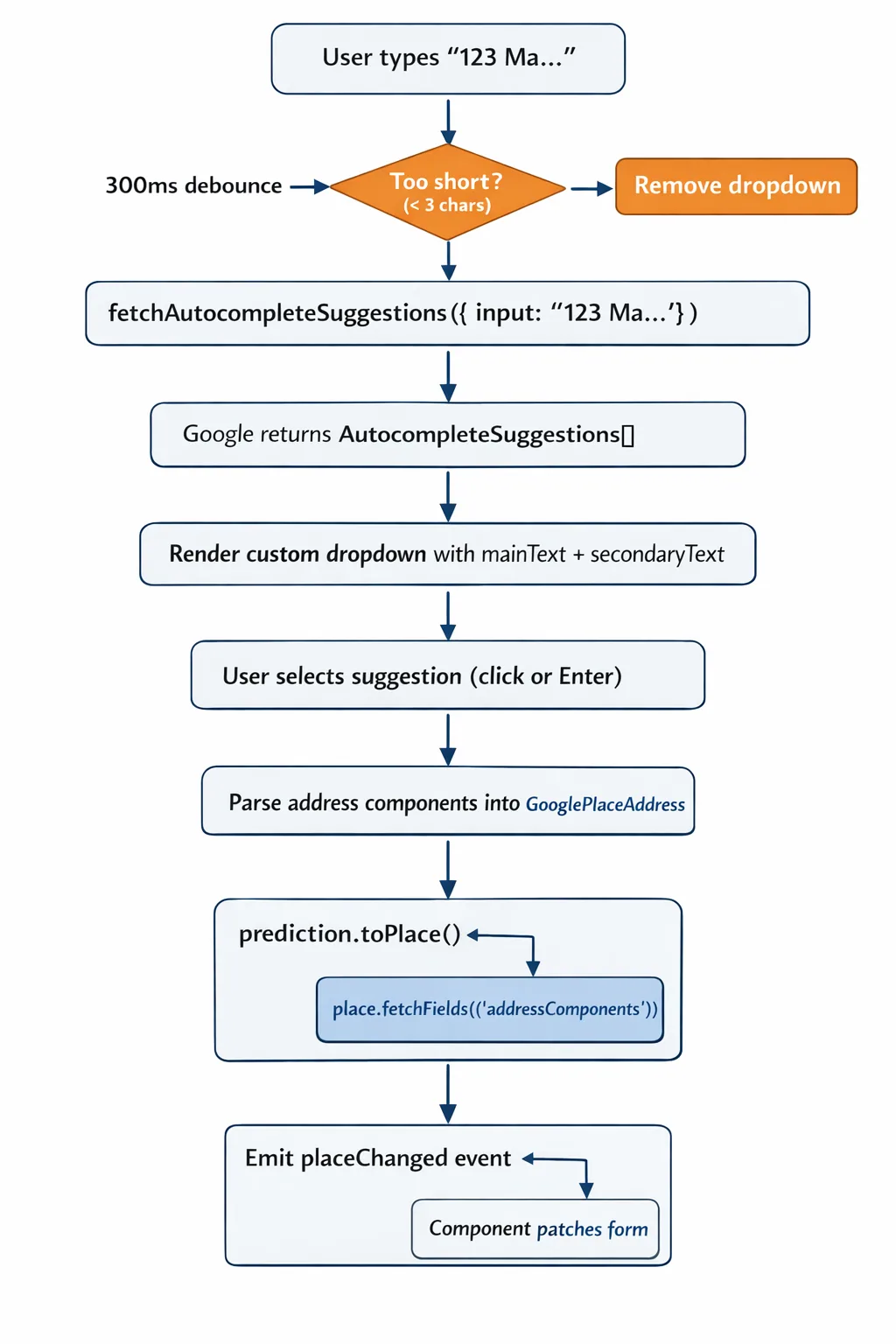
Two API calls are made per selection:
fetchAutocompleteSuggestions— returns suggestions as the user types (called on each debounced keystroke)fetchFields— fetches full place details when a suggestion is selected (called once per selection)
Common Gotchas
1. No More NgZone
Angular 21 is zoneless by default — Zone.js is no longer included in new projects. In previous Angular versions, you needed NgZone.run() to re-enter Angular’s zone after Google’s API callbacks, otherwise change detection wouldn’t fire. With zoneless change detection, this is no longer necessary. The directive’s dropdown is built with direct DOM manipulation (no Angular templates), and output().emit() automatically triggers change detection in the parent component through Angular’s template listener mechanism. If you’re migrating an older project, you can safely remove NgZone from directives like this one.
2. Browser Autocomplete
Browsers aggressively show their own address autocomplete on inputs named “address”, “street”, etc. Setting autocomplete="off" helps, but isn’t always enough. The directive sets it both via host binding and in ngOnInit for maximum compatibility.
3. Dropdown z-index
The dropdown uses z-index: 10100 and position: fixed. This ensures it appears above modals, dialogs, and other overlays. Adjust the z-index if your app uses different stacking levels.
4. Click Outside
We listen for mousedown (not click) on document to close the dropdown. This is because mousedown fires before the input’s blur event, allowing us to prevent blur when the user clicks a suggestion.
Conclusion
Building a custom autocomplete gives you full control over the UX while still leveraging Google’s powerful address matching. The directive pattern keeps it reusable — drop `libGooglePlaces` on any input and handle the `(placeChanged)` event. No wrapper components, no configuration objects, just a directive and an event.
The complete example project is available on
 timothydodd